
How to Unlock ZTE Y!mobile Routers 601ZT, 602ZT, 801ZT, 802ZT, 803ZT Remotely (2026 Guide)
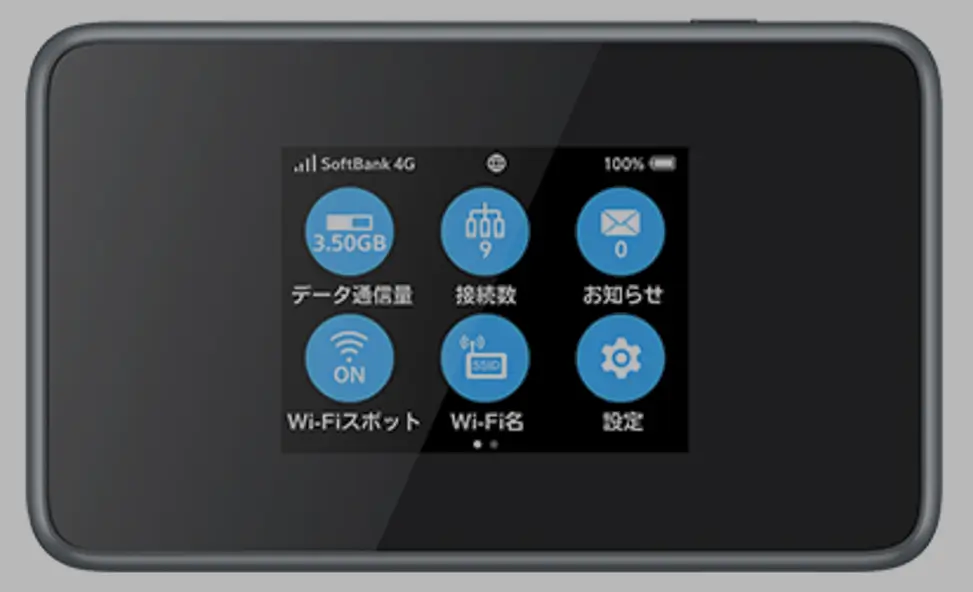
The ZTE 601ZT, 602ZT, 801ZT, 802ZT, and 803ZT are 4G LTE mobile routers sold exclusively through Y!mobile (SoftBank) in Japan. These compact pocket WiFi devices are popular among travelers and expats, but ship locked to Y!mobile’s network — preventing use with other Japanese carriers (docomo, au/KDDI, Rakuten) or international SIM cards.
Table of Contents
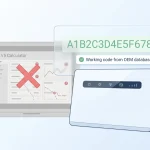
Important: Unlike standard ZTE routers, these Y!mobile models do not display an unlock code prompt when a foreign SIM is inserted. Traditional code-based unlocking is not possible. The only method is remote software unlocking performed by our technicians via remote desktop.
Supported Models
| Model | Carrier | Network | Type |
|---|---|---|---|
| 601ZT | Y!mobile (SoftBank) | 4G LTE | Portable MiFi |
| 602ZT | Y!mobile (SoftBank) | 4G LTE | Portable MiFi |
| 801ZT | Y!mobile (SoftBank) | 4G LTE Cat 12 | Portable MiFi |
| 802ZT | Y!mobile (SoftBank) | 4G LTE-A | Portable MiFi |
| 803ZT | Y!mobile (SoftBank) | 4G LTE-A | Portable MiFi |
Other Y!mobile ZTE models and SoftBank-branded ZTE devices are also supported. Contact us on WhatsApp to confirm your model.
Why These Devices Cannot Be Unlocked by Code
Most ZTE routers (MF920, MF286, etc.) prompt for an unlock code when a non-original SIM is inserted. The Y!mobile ZT-series devices are different:
- No unlock code prompt — the firmware completely suppresses the SIM unlock interface
- Custom Y!mobile firmware — heavily modified from standard ZTE firmware
- No web interface unlock option — the settings page has no carrier unlock section
This is why remote software unlocking is the only working method for these devices.
How Remote Unlocking Works
What You Need
- A Windows PC (Windows 10 or 11) with a stable internet connection
- A USB cable to connect your ZTE router to the computer
- Remote desktop software installed: AnyDesk (recommended), RustDesk, or TeamViewer
Connect Your Router
- Power on your ZTE router
- Connect it to your Windows PC using a USB cable
- Wait for Windows to recognize the device (drivers install automatically on most systems)
Start Remote Session
- Open AnyDesk, RustDesk, or TeamViewer on your PC
- Send us your connection ID via WhatsApp or Telegram
- Complete payment on our Remote Unlock page
Unlock Process
- Our technician connects to your PC securely
- Specialized unlock software is run to communicate with the router via USB
- The carrier lock is removed at the firmware level
- The entire process takes 10 to 20 minutes
- Your device is now permanently unlocked — insert any SIM card
Frequently Asked Questions
Can I use these routers outside Japan after unlocking?
Yes, provided the device supports the LTE bands used by the carrier in your country. The ZT-series routers support multiple international LTE bands, making them usable in many countries across Asia, Europe, and beyond.
Is the remote unlock safe?
Yes. You watch the entire process on your screen. Our technician only accesses your computer to run the unlock tool. The session ends immediately after completion, and you can disconnect at any time.
Is the unlock permanent?
Yes. Once unlocked, the device stays unlocked permanently through power cycles, factory resets, and firmware updates.
Can I use a Mac instead of Windows?
Our ZTE unlock tools currently require Windows only. If you do not have a Windows PC, contact us to discuss alternatives.
Which Japanese carriers will work after unlocking?
After unlocking, you can use SIM cards from NTT docomo, au (KDDI), Rakuten Mobile, IIJmio, mineo, and other MVNOs. International SIM cards also work if the bands are compatible.
Watch: ZTE Y!mobile Router Unlock Demonstration
Get Your ZTE Router Unlocked Today
Contact us through any of the channels below — we are available 24/7.