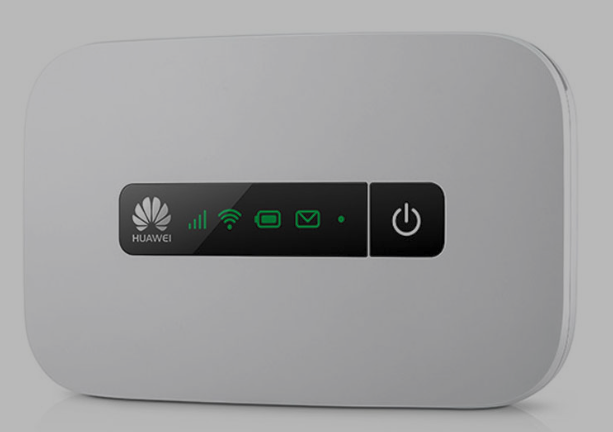

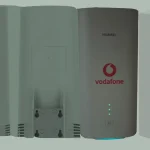
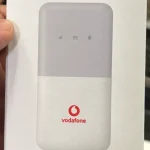

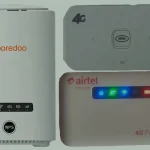
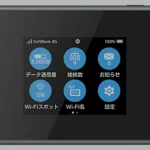
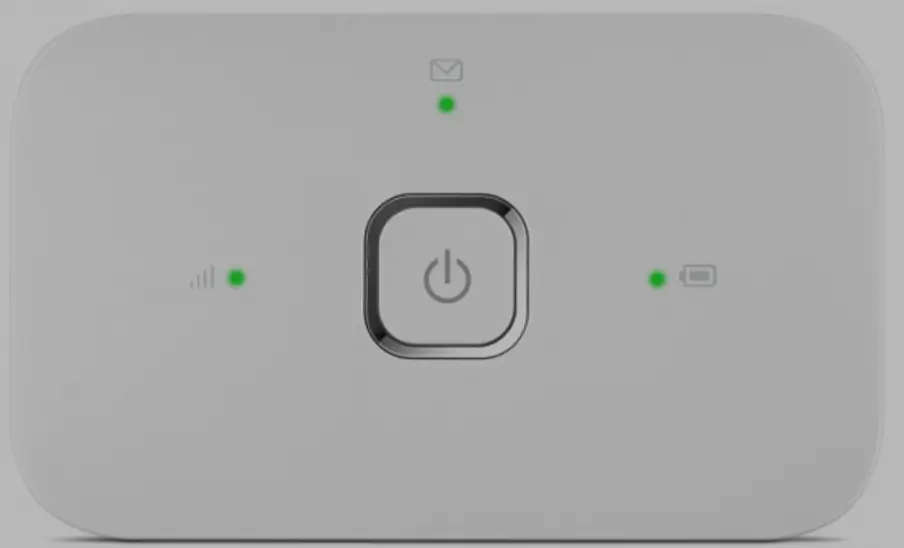
The Huawei R218H and R219H are 4G LTE mobile routers sold exclusively through Vodafone across Europe, Africa, and the Middle East. These compact pocket WiFi devices are locked to Vodafone’s network out of the box.
Table of Contents
There are two unlock methods available — a simple V5 code entry (recommended for everyone) and an advanced remote software method for the R218H (for technicians only).
Supported Models
| Model | Carrier | Network | Unlock Method |
|---|---|---|---|
| R218H | Vodafone | 4G LTE Cat 4 | V5 Code or Remote Software |
| R219H | Vodafone | 4G LTE Cat 4 | V5 Code |
Method 1: Unlock with Version 5 Code (Recommended)
This is the easiest method — enter a 16-digit code through the router’s web interface. No technical skills required.
Find Your IMEI Number
- Power on the router and connect via Wi-Fi or USB cable
- Open a browser and go to 192.168.0.1
- Log in with default credentials — admin / admin
- Go to Settings > Device Information and copy the 15-digit IMEI
- Alternatively, check the sticker under the battery
Purchase Your V5 Unlock Code
- Go to our Huawei V5 Unlock Code page
- Enter your IMEI number and email address
- Complete the payment — your 16-digit V5 code will be delivered to your email
Insert a New SIM and Unlock
- Power off the router and insert a non-Vodafone SIM card
- Power on and go to 192.168.0.1
- The web interface will prompt for an unlock code
- Enter the 16-digit V5 code and click Submit
- Your router is now permanently unlocked
Configure APN Settings (If Needed)
If the new SIM does not connect automatically:
- Go to Network Settings > APN Settings in the web interface
- Enter your new carrier’s APN details
- Save and restart the device
Method 2: Remote Software Unlock for R218H (Advanced)
For the R218H only, an alternative remote software unlock is available. This method is intended for technicians and advanced users as it requires partially disassembling the device.
What This Involves
- Disassemble the R218H — unscrew and remove the front plastic cover to access the main board
- Perform a test-point — short-circuit a specific point on the motherboard to enable firmware access
- Connect via USB to a Windows PC
- Remote session — install AnyDesk or TeamViewer and share your connection ID
- Our technician completes the unlock remotely
Important: The test-point method requires technical skills and tools. If you are not experienced with hardware disassembly, we strongly recommend the Version 5 unlock code method instead — it is simpler, safer, and achieves the same result.
Frequently Asked Questions
Which method should I choose?
For most users, the V5 unlock code is the best option. It requires no technical skills — just enter the code in the web interface. The remote software method is only needed if the V5 code does not work on your specific R218H firmware version.
What is the default IP address for these routers?
The Vodafone R218H and R219H use 192.168.0.1 (not the 192.168.8.1 used by standard Huawei routers).
Is the unlock permanent?
Yes. Both the V5 code method and the remote software method produce a permanent unlock that survives firmware updates and factory resets.
Will this work with non-European Vodafone variants?
Yes. Our V5 codes work for Vodafone R218H and R219H units from any country — Europe, Africa, Middle East, and Asia Pacific.
Watch: R218H Unlock Demonstration
Get Your Router Unlocked Today
Contact us through any of the channels below — we are available 24/7.