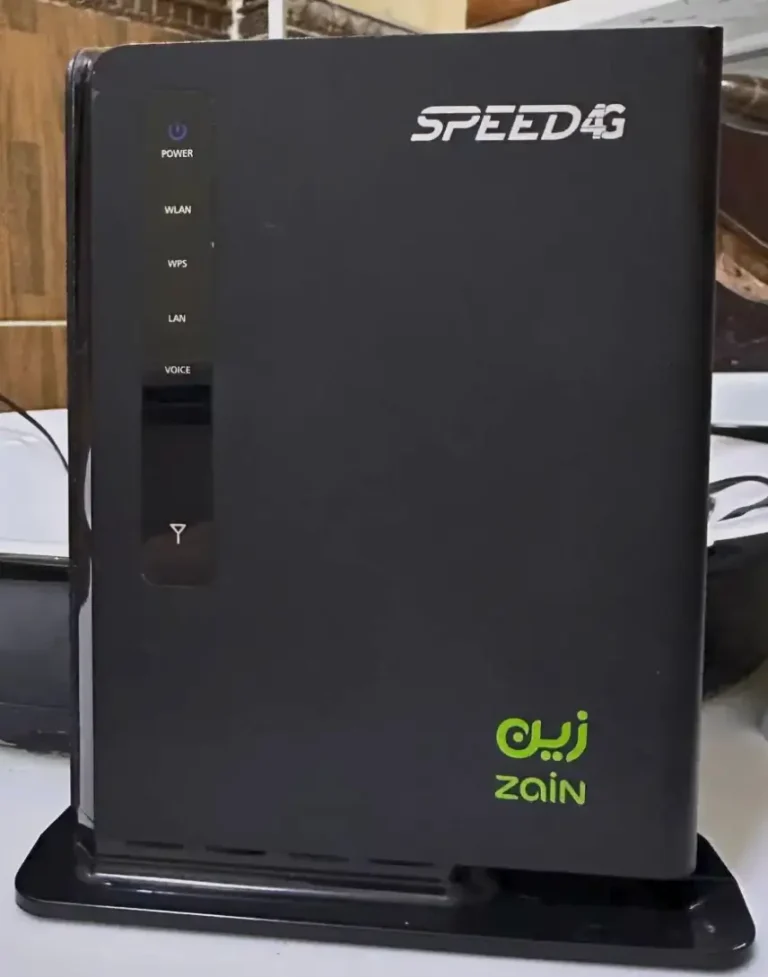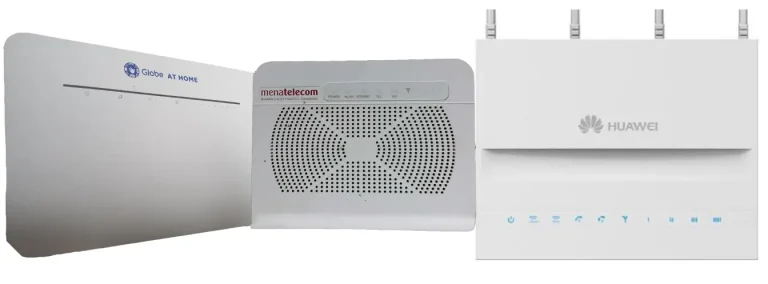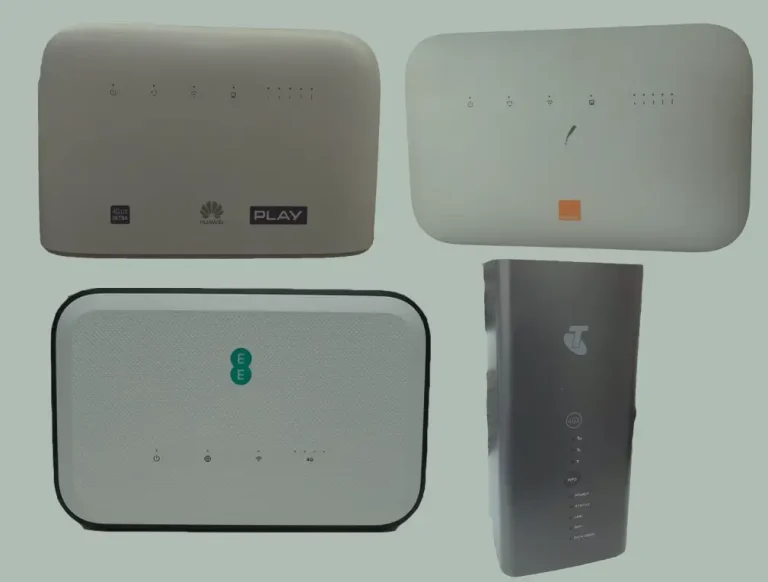

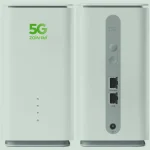
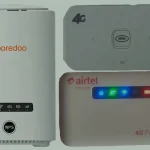
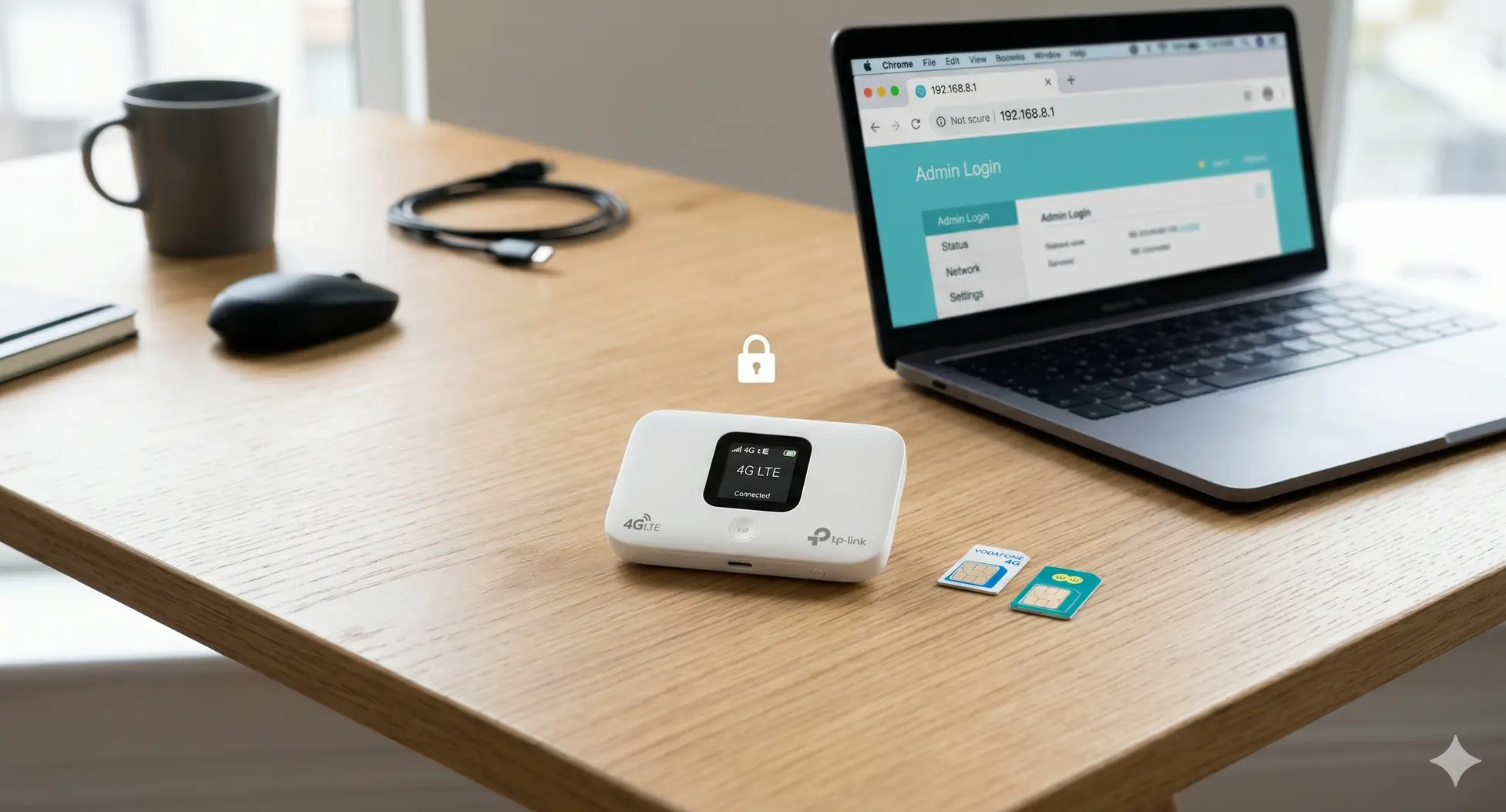
Bought a secondhand router? Received a MiFi from a friend? Before you insert your SIM card, you need to know if the device is network locked — meaning it only works with one specific carrier. This guide shows you exactly how to check, what the signs are, and what to do if your device is locked.
Table of Contents
What Does “Network Locked” Mean?
When a carrier like MTN, Vodafone, Airtel, EE, or T-Mobile sells you a router or MiFi, they often lock it to their network. This means the device will only accept SIM cards from that carrier. If you insert a SIM from a different network, the device will either:
- Display an “Enter Unlock Code” prompt
- Show “Invalid SIM” or “SIM Not Supported”
- Simply not connect to the internet with no error message
- Show the carrier name but refuse to register on the network
An unlocked device accepts any SIM card from any carrier in the world.
Method 1: Insert a Different SIM Card (Most Reliable)
This is the simplest and most reliable test:
- Get a SIM card from a different carrier than the one the device was originally sold with
- Power off the router or MiFi
- Insert the new SIM and power on
- Check the result:
| What You See | What It Means |
|---|---|
| Internet works, full signal | UNLOCKED — device is free to use with any carrier |
| “Enter Unlock Code” or “Enter NCK” prompt | LOCKED — needs an unlock code |
| “Invalid SIM” or “SIM Not Supported” | LOCKED — needs an unlock code |
| Connects to WiFi but no internet | LOCKED or wrong APN settings |
| No error, but no signal bars | LOCKED or incompatible LTE bands |
Method 2: Check the Web Interface
Most routers and MiFi devices have a web-based admin panel where you can check the SIM lock status:
For Huawei Devices
- Connect to the device via WiFi
- Open a browser and go to 192.168.8.1
- Log in with admin / admin
- Look for SIM Settings or Network Lock in the menu
- If you see “SIM Lock” or “SIMLOCK Status: Locked” — the device is locked
For ZTE Devices
- Connect and go to 192.168.0.1 or 192.168.1.1
- Check Device Information or SIM Settings
- Some ZTE routers show lock status directly; others only reveal it when a foreign SIM is inserted
For Alcatel/TCL Devices
- Connect and go to 192.168.1.1
- Check Device Information
- Insert a non-original SIM — if it asks for an NCK code, it’s locked
Method 3: Check the IMEI Number
Every router, MiFi, and modem has a unique 15-digit IMEI (International Mobile Equipment Identity) number. You can use this to identify the device and check its status.
How to Find Your IMEI
| Method | How |
|---|---|
| Device label | Check the sticker on the back, bottom, or under the battery |
| Web interface | Go to 192.168.8.1 (Huawei) or 192.168.0.1 (ZTE) → Device Information |
| Device screen | Some MiFi devices show the IMEI on their LCD display under Settings |
| Original box | The IMEI is printed on the barcode sticker on the retail box |
What to Do if Your Device is Locked
If your device is network locked, you need an unlock code to remove the restriction. The type of code depends on your device brand:
| Brand | Code Type | Get It Here |
|---|---|---|
| Huawei (newer/5G) | V5 — 16-digit alphanumeric | Buy Huawei V5 Code |
| Huawei (older/3G-4G) | V4 — 8-digit numeric | Buy Huawei V4 Code |
| ZTE | 8-16 digit code | Buy ZTE Code |
| Alcatel/TCL (routers) | 16-digit NCK | Buy Alcatel 16-Digit Code |
| Alcatel/TCL (MiFi/modems) | 10-digit NCK | Buy Alcatel 10-Digit Code |
| ZLT / D-Link / Shanghai Boost | Remote software unlock | Request Remote Unlock |
Devices That Don’t Show an Unlock Prompt
Some devices are locked but never ask for an unlock code. Their custom firmware suppresses the prompt entirely. These include:
- ZLT routers (M028, M030, S20, X20, X28)
- D-Link routers (DWR-921, DWR-932C)
- Shanghai Boost / Vida Technologies devices
- Some ZTE Y!mobile models (601ZT, 802ZT, 803ZT)
- Some MTN-branded ZTE routers
For these devices, remote software unlocking is the only option. Learn more about remote unlocking.
“No Internet” After Inserting a New SIM — Locked or APN Issue?
If your device connects to WiFi but has no internet after inserting a new SIM, it could be either a lock issue or an APN issue. Here’s how to tell:
| Symptom | Likely Cause | Solution |
|---|---|---|
| “Enter Unlock Code” prompt | Device is locked | Buy an unlock code |
| Signal bars present, no internet | Wrong APN settings | Configure APN in Settings → Network → APN |
| No signal at all | Locked OR incompatible bands | Try unlock code first; if still no signal, check LTE band compatibility |
| SIM not detected | SIM size mismatch or hardware issue | Check SIM tray, try different SIM |
Frequently Asked Questions
Is it legal to unlock a router?
Yes. Network unlocking is legal in most countries including the United States, United Kingdom, European Union, and most of Africa and Asia. You own the device — you have the right to use it with any carrier.
Will unlocking void my warranty?
No. Entering an unlock code does not modify firmware or hardware. It uses the same mechanism carriers use internally. However, carrier-subsidized device warranties may have specific terms.
How do I know which unlock code version I need (V4 vs V5)?
Insert a non-original SIM card. If the device asks for an 8-digit code, you need V4. If it asks for a 16-digit code, you need V5. Not sure? Message us on WhatsApp with your model number.
Can I check lock status without a second SIM card?
On some Huawei devices, you can check via the web interface at 192.168.8.1 under SIM Settings. But the most reliable method is always to insert a different carrier’s SIM.
Need Help?
Not sure if your device is locked, or which unlock code you need? Contact us with your device model and IMEI number — we’ll tell you exactly what you need within minutes.